
Introduction
Experiencing a black screen on your Onn TV can halt your entertainment plans and cause unnecessary stress. Grasping the underlying causes and knowing the right fixes is crucial for bringing your TV back to life. This comprehensive guide will walk you through simple and advanced solutions to tackle black screen issues effectively, ensuring your viewing experience is uninterrupted.
Common Causes of Onn TV Black Screen
Several factors can contribute to a black screen on your Onn TV, each requiring a distinct approach for resolution. Recognizing these common causes sets the stage for effective troubleshooting.
-
Connection Errors: Make sure all cables are securely plugged in. A loose HDMI or power cable is a frequent culprit for display issues.
-
Power Supply Issues: Verify that your TV is receiving stable power from a functional outlet. Power fluctuations can easily disrupt your TV’s operation.
-
Software Glitches: Software could be implicated due to bugs or errors, often rectified through software updates or system resets.
Understanding these potential causes provides a foundation for attempting basic solutions first.
Initial Troubleshooting Steps
Armed with insight into common causes, proceed with these initial checks. They are straightforward and often resolve simpler issues quickly.
- Check Power and Remote Control: Confirm your TV is turned on and that the remote is operational. Battery replacements might be necessary for remotes.
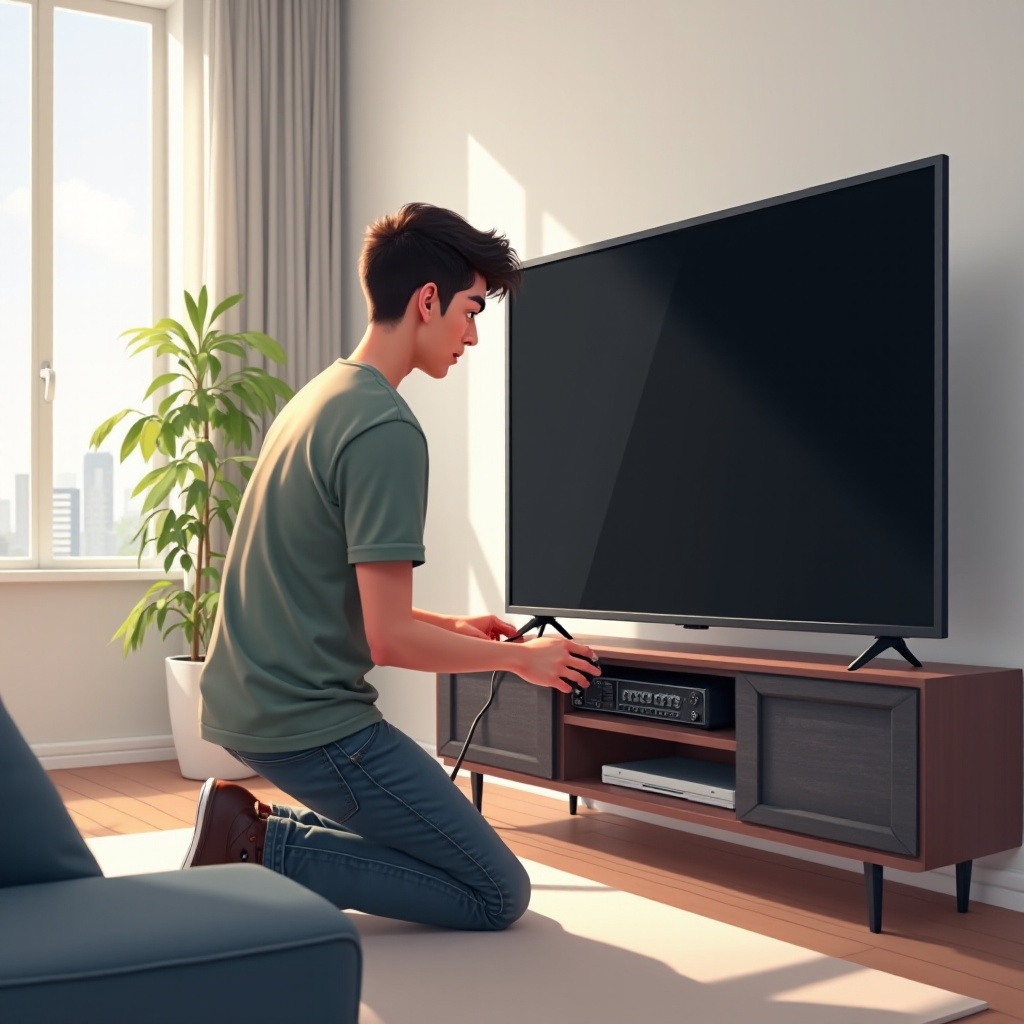
- Verify Cable Connections: Inspect and reseat HDMI and power cables. Proper cable connections are vital for your TV’s display functionality.
- Confirm Input Source: Use the remote to cycle through input sources until the correct one displays your content.
These basic steps can often solve the problem, but if not, it’s time to try quick fixes.
Quick Fixes You Can Try at Home
When basic troubleshooting doesn’t work, these quick fixes may restore your TV’s display.
-
Power Cycle Your TV: Unplug your TV, wait 30 seconds, and plug it back in to reset. This simple action can clear temporary power-related issues.
-
Reset HDMI Ports: Disconnect all devices and reconnect them to test each HDMI port’s functionality.
-
Adjust Display Settings: Through your TV menu, check and adjust display settings to ensure nothing is inadvertently causing a black screen.
If these fixes do not work, it might be necessary to delve into advanced troubleshooting.
Advanced Troubleshooting Techniques
Persistent issues may require deeper investigation. These advanced solutions address more stubborn problems.
-
Update Firmware and Software: Go to the settings menu to check for available updates and apply them. Updates often contain fixes for known bugs and performance enhancements.
-
Inspect for Hardware Damage: Examine your TV for any physical damage including cracks or burnt marks. Damage often indicates more serious, underlying hardware failures.
-
Conduct a Factory Reset: A reset can solve entrenched software issues, but remember to back up settings prior. Follow the manual to reset effectively.
By employing these methods, you can solve issues that basic troubleshooting cannot, but professional help may be needed if problems persist.
When to Seek Professional Help
If all else fails, professional assistance might be required. Recognizing when the situation transcends DIY solutions can save further inconvenience.
-
Recognizing Symptoms of Severe Issues: Unusual noises, persistent errors, or ongoing performance issues may signal significant mechanical problems.
-
Understanding Warranty and Repair Options: Check your warranty terms. Reach out to the manufacturer’s customer service for advice on repair options or find an authorized service center.
Conclusion
Effective troubleshooting combines knowledge of potential issues with systematic solutions. By following these steps, you increase the likelihood of resolving the black screen issue. Remember to maintain your TV regularly and consider professional help when necessary, ensuring your TV stays in excellent condition for future use.
Frequently Asked Questions
How do I perform a factory reset on my Onn TV?
To perform a factory reset, go to the settings menu, select the ‘Reset’ option, and follow the instructions. Ensure all personal settings are backed up.
What should I do if my TV screen stays black after trying these fixes?
If the screen remains black, contact Onn customer service or a professional technician for further diagnosis and repair.
Are black screen issues common with Onn TVs?
Black screen problems can occur with any TV brand, including Onn. Regular maintenance and system updates can help prevent such issues.