
Introduction
Experiencing issues with your LG TV not responding to its remote control can be incredibly frustrating and interrupt your entertainment routine. This guide delves into the common reasons behind this problem and provides effective troubleshooting steps to help you regain control. By understanding the root causes and systematically addressing them, you can restore the functionality of your remote.
Common Causes of LG TV Remote Issues
To effectively troubleshoot, it’s crucial to identify potential causes that might be affecting your remote’s performance.
-
Battery Problems: Frequently, remote control issues stem from depleted or incorrectly installed batteries. Confirm that batteries are fresh and installed correctly.
-
Infrared Signal Blockage: The remote relies on an unobstructed infrared signal to communicate with the TV. Check for objects that may be obstructing the signal path.
-
Hardware Malfunctions: Occasionally, physical damage or wear can affect the remote’s buttons or the TV’s infrared receiver, leading to unresponsiveness.
Recognizing these common issues is an essential first step in addressing your remote’s lack of response.
Quick Resolutions You Can Try
Before escalating the problem, there are several quick fixes you can attempt within your own home.
-
Checking and Replacing Batteries: The first course of action should be replacing the remote’s batteries with a fresh set. Ensure proper polarity alignment.
-
Ensuring a Clear Infrared Path: Analyze the remote-to-TV path for any obstructions. Objects, even small ones, can interfere with the signal, so ensure a clear line of sight.
-
Resetting the Remote: Reset the remote to eliminate temporary glitches. Remove the batteries, press each button for a couple of seconds, then replace the batteries.
Successful troubleshooting often starts with these straightforward measures, restoring functionality in numerous cases.
Proper Battery Replacement Techniques
To replace remote batteries effectively, remove and dispose of the old batteries, insert new ones, and check for the correct positive and negative alignment.
Maintaining Infrared Signal Clarity
Regularly clean the IR receivers on both the TV and remote to ensure optimal performance. Make sure to position the remote directly in front of the TV, free of any obstacles.
Technical Troubleshooting Methods
If immediate fixes don’t resolve the problem, consider these technical solutions designed to address deeper issues.
-
Verifying Remote Functionality with a Smartphone Camera: A smartphone camera can detect the infrared light emitted by your remote. Point the remote at the camera while pressing a button. If you see a light on the camera screen, the remote is transmitting correctly.
-
Re-pairing the Remote with the TV: Consult your TV’s instruction manual to follow the steps for re-pairing your remote. This process can rectify connection issues between the remote and TV.
-
Factory Resetting the TV: As a last resort, consider resetting the TV to its factory settings. Be aware that this will erase custom settings.
These methods delve deeper into the causes behind persistent remote issues, offering a thorough approach to solving them.
Testing Remote Infrared with a Smartphone
To test using your smartphone, activate the camera, point the remote at the camera, and press any button. If the remote is functional, you’ll notice a light flash through the camera’s screen.
Steps for Remote Re-pairing
-
Follow your TV’s re-pairing instructions found in the manual.
-
Access the TV’s settings, navigate to the remote or accessory section, and initiate pairing.
-
Test the remote to ensure successful re-pairing with your TV.
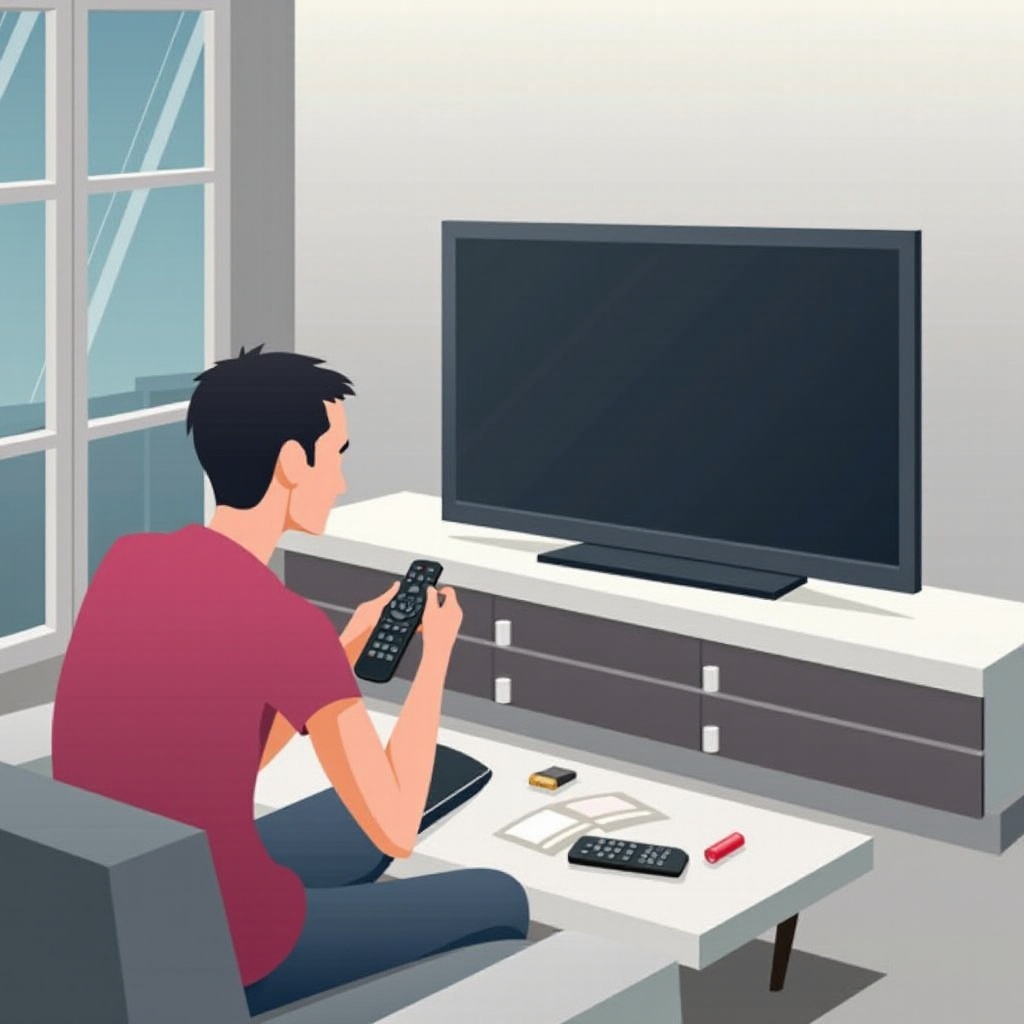
Advanced Solutions and Options
Persistent problems may require advanced solutions, such as updates and alternative control methods.
-
Updating Your TV’s Firmware: An outdated firmware can cause operational issues. Check for updates via the TV settings or the manufacturer’s website and follow the instructions to complete the update.
-
Utilizing the LG TV Remote App: This app offers a reliable solution in place of or in addition to your physical remote. Download and configure it on your smartphone for seamless control.
-
Consider a Replacement or Universal Remote: If your remote is beyond repair, explore replacement options or invest in a universal remote that supports LG TVs.
These comprehensive solutions help ensure you have multiple ways to manage your TV should conventional approaches fail.
Updating LG TV Firmware: A Step-by-Step Guide
-
Access the TV menu, navigate to ‘Settings,’ then ‘All Settings.
-
Select ‘General,’ proceed to ‘About This TV,’ and choose ‘Check for Updates.
-
If updates are available, proceed with the download and installation.
Advantages of the LG TV Remote App
The LG TV Remote App provides an immediate alternative to physical remotes, ensuring uninterrupted viewing. It’s easy to set up and use.
When Professional Support Is Needed
While many issues can be addressed at home, certain problems demand professional expertise. If the remote remains unresponsive despite thorough troubleshooting, it’s advisable to contact LG customer support or a certified technician.
Professional intervention may be necessary for hardware repairs or internal software issues beyond typical solutions.
Conclusion
Dealing with an LG TV remote that doesn’t respond can be a hassle, but various troubleshooting steps can resolve the problem. From quick fixes and technical approaches to advanced solutions, understanding and addressing the causes of remote issues can restore the convenience of your entertainment system. Should all else fail, don’t hesitate to seek professional help.
Frequently Asked Questions
Why does my LG TV remote stop working intermittently?
Intermittent functionality may result from weak batteries or signal interference. Ensuring a clear path and fresh batteries can often resolve this.
Can a universal remote be used with LG TV?
Yes, universal remotes compatible with LG TVs are available. Follow the setup instructions to connect it to your TV.
How often should I update my LG TV firmware?
Check for firmware updates every 6-12 months, or when prompted by LG. Updates fix bugs and improve your TV’s performance.