
Introduction
Dealing with lines across your MacBook screen can be exasperating, especially during critical tasks. These unsightly lines can originate from diverse causes, including hardware breakdowns and software conflicts. By comprehending these root problems, you can effectively restore your MacBook’s full functionality. This article delves into potential causes and solutions, offering both do-it-yourself tips and guidance on when professional help is warranted. Let’s embark on this journey to clear your MacBook screen.
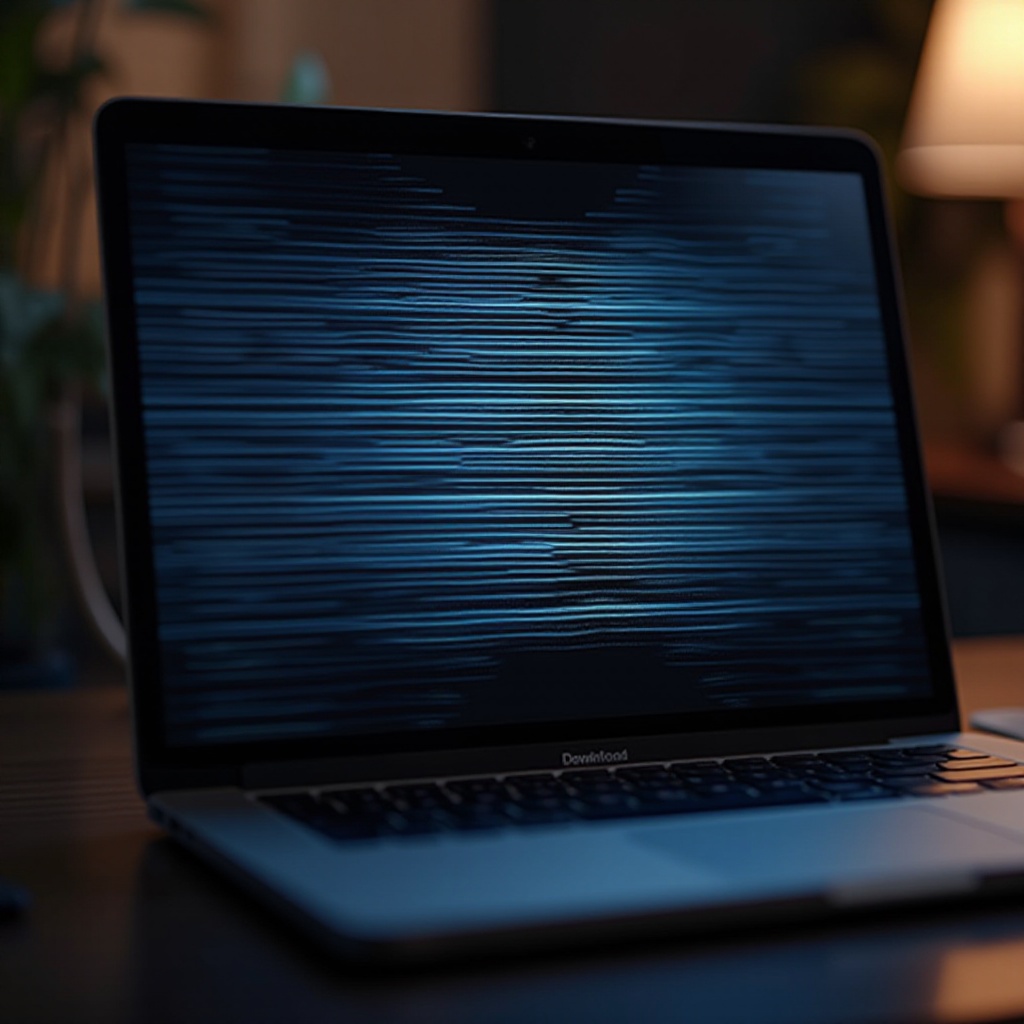
Common Causes of Lines on Your MacBook Screen
Lines on a MacBook screen are not just aesthetic annoyances; they often signal underlying problems. Identifying their origins can streamline the resolution process:
- Internal Hardware Issues: Problems with components like the display cable, GPU, or display unit can manifest as screen lines. Such hardware complications often arise from aging parts or accidental damage.
- Software Glitches and Compatibility Issues: Faulty macOS builds or third-party app incompatibilities could also instigate screen distortions. Regular updates and application management are vital to prevent such issues.
- Connection and Cable Problems: Internal cables that connect your display to the motherboard can sometimes become loose or damaged, resulting in erratic screen displays.
Recognizing these problems now will guide you in selecting the right troubleshooting steps. Let’s proceed to practical initial troubleshooting techniques you can apply.
Initial Troubleshooting Steps for Screen Lines
Before you panic, several basic steps could resolve your screen lines issue effectively. You can try these uncomplicated methods at home:
- Restart Your MacBook: Often a reboot can address minor glitches. Turn off your device, wait a few seconds, and power it back on to check if the lines persist.
- Check and Update Software: Ensure your macOS is current by navigating to the Apple menu and selecting ‘System Preferences’ > ‘Software Update’ to perform necessary updates.
- Perform a Safe Boot: This approach helps isolate software issues. Restart your Mac while holding the Shift key until you see the login window and then release.
These initial steps can rectify most minor issues, but if the problem persists, advanced troubleshooting might be necessary.

Advanced Solutions for Persistent Screen Lines
If basic troubleshooting fails to solve the problem, it is time to explore more in-depth solutions.
- Adjust Display and Resolution Settings: Go to ‘System Preferences’ > ‘Displays’. Adjust resolution settings to see if it influences the lines. Sometimes, recalibrating settings clears bugs.
- Reset the System Management Controller (SMC): This reset can fix a range of hardware-related issues. Shut down your MacBook, attach the power adapter, hold down Shift+Control+Option and the power button for 10 seconds, then release and restart.
- Conduct a Hardware Diagnostic Test: Apple’s built-in diagnostics can be revealing. Power off your device, then power it on while holding the D key. Follow the instructions to diagnose potential hardware failures.
Completing these steps can clarify whether deeper hardware repair is needed. If screen problems persist, the next phase would be seeking professional evaluation.

When to Consult a Professional Technician
Should lines remain a problem after comprehensive troubleshooting, it’s wise to consider expert advice:
- Identifying Persistent Issues: Continuous failure to resolve the screen lines through both basic and advanced measures suggests more profound issues possibly requiring professional intervention.
- Exploring Repair and Replacement Options: Technicians can accurately diagnose problems and propose effective repairs or replacement of faulty components critical to display operation.
- Understanding Warranty Coverage: If under warranty, your MacBook’s issues can usually be addressed by Apple Support or authorized service providers at no extra cost.
Consulting a professional ensures precise diagnoses and solutions, preventing further potential damage and guaranteeing your MacBook remains in peak condition.
Conclusion
Resolving lines on your MacBook screen demands patience and methodical approaches. We’ve covered potential causes, basic troubleshooting, advanced solutions, and when to engage expert help. By following this guide you can probably solve or prevent most screen-line related issues. If they persist, professional assistance is always recommended.
Frequently Asked Questions
Why are there horizontal lines on my MacBook screen?
Horizontal lines often result from hardware issues, software glitches, or loose connections.
Can software updates fix screen line issues?
Yes, if the lines stem from a software-related problem, updates can often resolve it.
Is it safe to perform hardware diagnostics myself?
Running built-in diagnostics is safe and can help pinpoint hardware issues, although some problems may require a professional’s touch.