
Introduction
Optimize storage on iPhones is a handy feature for those with limited storage space, as it manages your device capacity by keeping high-resolution files in iCloud and reduced-size versions locally. Despite its benefits, for many who need instant access to full-quality files offline or without a reliable internet connection, it can become a hindrance. Knowing how to turn this feature off provides more control over storage use and guarantees access to high-resolution files whenever required. This article aims to guide you through disabling this feature, exploring the reasons behind it, and presenting effective storage management practices.
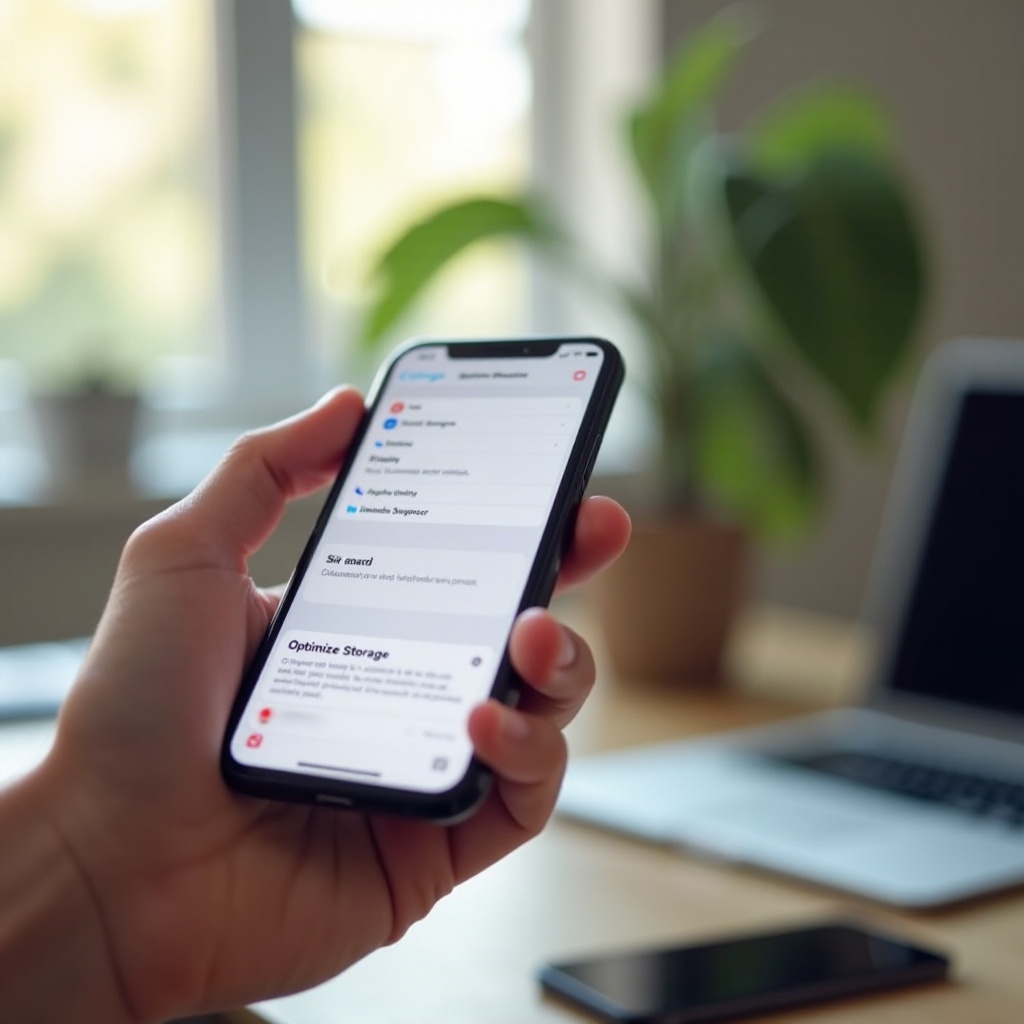
Understanding Optimize Storage on iPhone
The Optimize Storage setting is designed to help users manage storage. It automatically stores original photos and videos in iCloud, keeping smaller versions on the device. For those regularly backing up to iCloud and dealing with constrained device storage, it is incredibly useful. When space is low, the iPhone replaces some original photos with device-sized versions to free up room.
However, certain scenarios require immediate access to full media files. Balancing the ease of use with accessibility is crucial for optimal storage handling. Next, let us examine specific circumstances under which you might decide to disable this feature.
Reasons to Disable Optimize Storage
Several reasons might encourage you to turn off the Optimize Storage feature:
-
Immediate Access to Media: Individuals frequently needing original photos or videos will find Optimize Storage counterproductive. Traveling without internet or using devices for professional photography makes access to all files imperative.
-
Offline Preparation: Planning for offline periods with full-resolution files locally available is advantageous, as it provides access without downloads.
-
iCloud Limits: Approaching your iCloud storage threshold without interest in an upgrade makes manual storage management more appealing.
By identifying these situations, you can decide if disabling Optimize Storage suits your needs. The following section covers the steps required to turn off this feature.
Step-by-Step Guide to Disabling Optimize Storage
Here is how you can disable Optimize Storage on your iPhone:
-
Start with Settings: Unlock your iPhone and navigate to your Home screen. Open the Settings app.
-
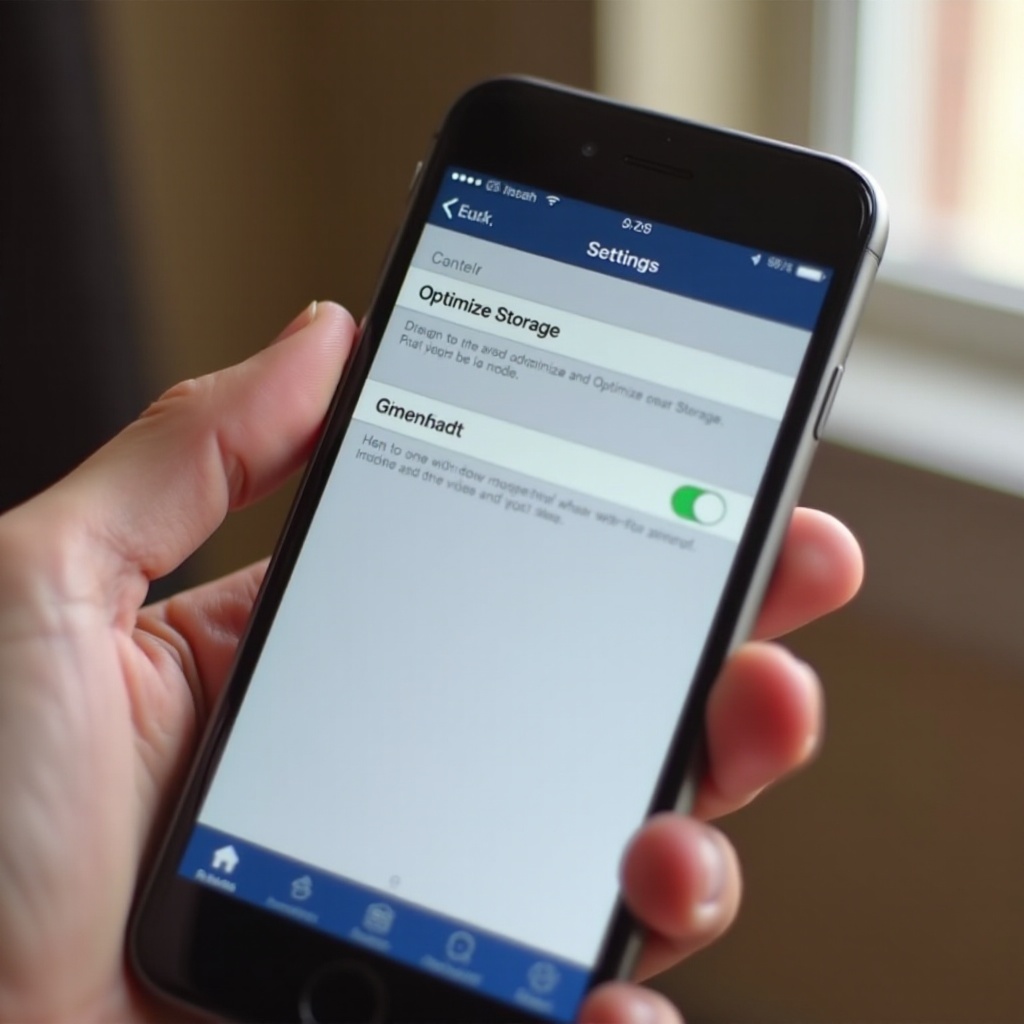
Go to Photos: Scroll through the Settings menu and select Photos. This area controls all photo-related configurations on your device.
-
Switch Off Optimize Storage:
-
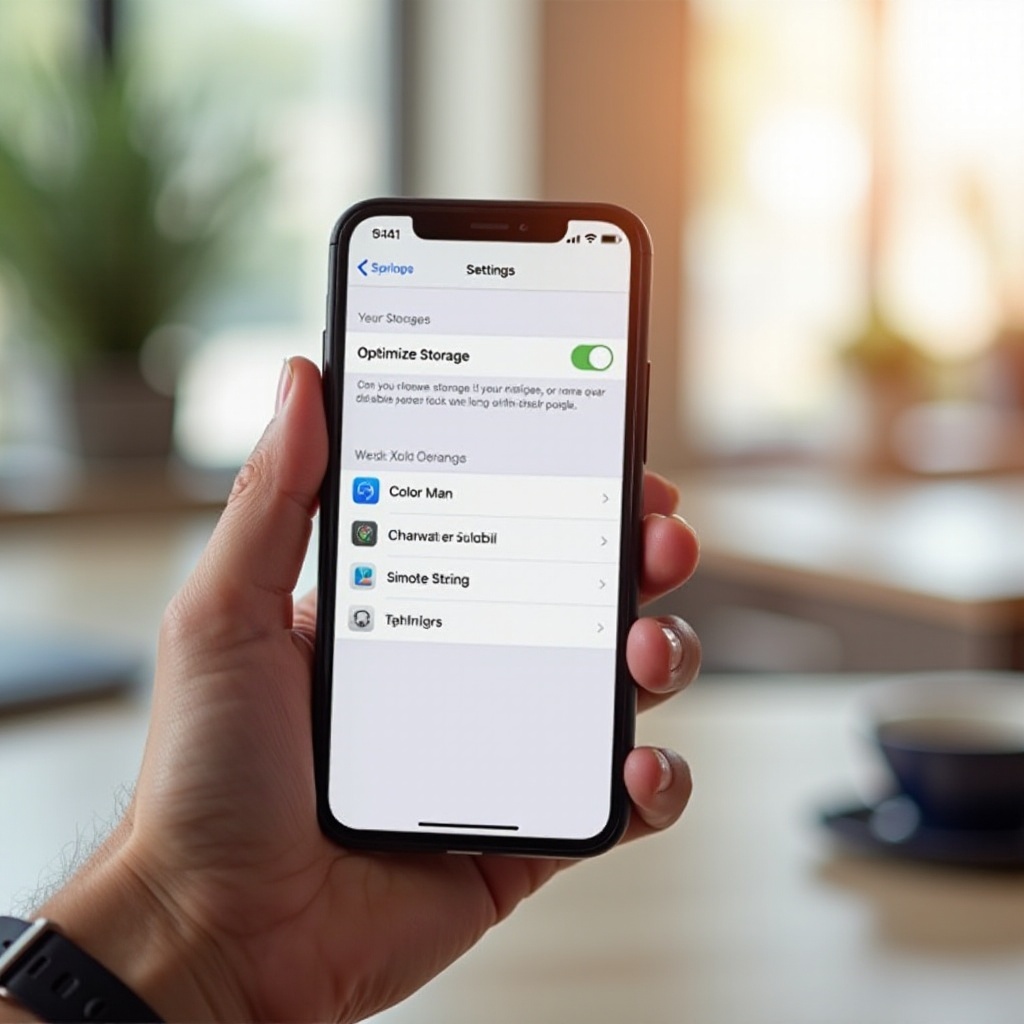
In the iCloud section, you will see Optimize iPhone Storage and Download and Keep Originals.
- Choose Download and Keep Originals to ensure all media is stored in full resolution on your device.
With these steps, Optimize Storage is effectively disabled, allowing easy access to original files. How should you manage storage now? That is up next.
Managing Storage After Disabling Optimize Storage
Post-Optimize Storage, management becomes crucial to avoid running out of space. Consider these tips:
-
Manual Photo Management: Regularly comb through and delete unneeded photos and videos. Organize images into albums and periodically transfer old media to an external drive or alternative cloud service.
-
External Storage Use: Utilize an external SSD or flash drive compatible with your iPhone to offload large files and archive seldom-accessed media.
Following these strategies helps maintain control over iPhone storage. In the next section, we discuss alternative ways to manage storage efficiently.
Alternatives to Optimize Storage for Space Saving
Should you choose to turn off Optimize Storage, these alternatives can aid in space management:
-
Cloud Storage Exploration: Beyond iCloud, services like Google Photos and Dropbox offer substantial space for media files, acting as great backup solutions that free up device space.
-
Third-Party Photo Apps: Many apps efficiently reduce photo size, preserving quality and saving space.
Employing these alternatives keeps devices uncluttered while ensuring access to crucial media files. Let us now move to best practices for iPhone storage optimization.
Best Practices for Optimizing iPhone Storage
Consider these practices for optimal storage management:
-
Regular Photo Cleanup: Periodically declutter photo libraries by removing redundant or blurry images, freeing up space.
-
Backup Strategies: Back up devices to computers or external drives routinely for data safety and to clear original iPhone files, gaining additional space.
These practices significantly improve storage management, ensuring a seamless experience post-Optimize Storage disabling. Finally, let us summarize the key points.
Conclusion
Disabling Optimize Storage on your iPhone grants control over media quality and data handling. While beneficial for limited storage, having ready access to high-resolution files is often more practical for many users. Following the aforementioned steps and strategies allows you to enjoy your photos and videos in full quality while maintaining efficient storage management.
Frequently Asked Questions
What happens to my photos if I turn off Optimize Storage?
Turning off Optimize Storage downloads photos in full resolution to your device. Be sure to have enough free space for these files.
Can I manage iPhone storage without using iCloud?
Yes, iPhone storage can be managed without iCloud by transferring files to a computer, using third-party cloud services, or employing photo management apps that reduce file size.
What are the common issues after disabling Optimize Storage?
A common issue is running out of device storage, as full-resolution media takes more space. Address this by increasing device memory capacity or using external solutions.